
Photo converter
ConvertAnyPhoto
ConvertAnyPhoto converts any photo format in one click. No complicated settings, no wasted time. Fast, simple photo conversion by photographer Sergey Ivanov, made for photographers who would rather shoot than fight with files.
Seamless RAW conversion & automated Capture One session bridge for Hasselblad photographers.
Convert Any Photo
If you shoot Hasselblad and edit in Capture One, you know the problem: Capture One won't open .3fr or .fff files. For years that meant Phocus, an export, then a script to fix the tags. ConvertAnyPhoto does all of that in one step.
Drop your files in, pick DNG, and they show up in a Capture One session ready to edit. It also reads RAW files from Canon, Nikon, Sony, Fujifilm and most other brands, and writes JPEG, TIFF, PNG, HEIC, WebP or JPEG XL when you just need a picture to send.
- Hasselblad
.3frand.fffto DNG that Capture One accepts - Whole folders in one go
- Skips near-identical frames from bursts
- Turns a selection into an MP4 slideshow
What it does
It opens camera RAW files and saves them in a format your editor or your client can use. You choose the output format and where the files go. The full list of cameras is just below.
Output formats
DNG, JPEG, TIFF, PNG, HEIC, WebP, JPEG XL
Sends files to
Capture One, Lightroom Classic, Darkroom, Apple Photos
Supported RAW formats
| Format | Brand | Cameras | To DNG | To JPEG, HEIC, PNG... |
|---|---|---|---|---|
| 3FR | Hasselblad | X2D 100C, X1D II 50C, H3DII-39, CF-22, CFV-16 | Yes | Yes |
| ARW | Sony | A1 II, A7 IV, A7R V, A6400, A6000, ZV-1, RX100 and RX10 series, NEX, SLT and DSLR-A series | Yes1 | Yes1 |
| CR2 | Canon | EOS 5D to 5D Mark III, 6D, 7D, 20D to 60D, 100D to 1200D, 1D and 1Ds series, PowerShot G and S series | Yes2 | Yes |
| CR3 | Canon | EOS R5, EOS R6 Mark II, EOS 90D, PowerShot G7 X Mark III | Yes | Yes |
| CRW | Canon | EOS D30, D60, 10D, 300D, PowerShot G1 to G6, S30 to S70, Pro1, A610 to A720 | Yes | Yes |
| DCR | Kodak | DCS Pro SLR/n, DCS Pro 14nx | Yes | Yes |
| DNG | Leica, Pentax, Ricoh, Google, DJI, Sigma, Samsung, Nokia, OnePlus, Apple | Leica M8, M10, Q2, Pentax K-1 Mark II, KP, Ricoh GR, Pixel 7 Pro, Sigma fp, iPhone 12 Pro | Yes3 | Yes |
| ERF | Epson | R-D1 | Yes | Yes |
| IIQ | Phase One | IQ4 150MP, IQ180 | Yes | Yes |
| KDC | Kodak | DC50, DC120, EasyShare Z1015 IS, P880 | Yes | Yes |
| MDC | Minolta | RD175 | Yes | Yes |
| MEF | Mamiya | ZD | Yes | Yes |
| MOS | Leaf | Aptus 22, Aptus 75 | Yes | Yes |
| MRW | Minolta | DiMAGE 7 to A200, Dynax 5D and 7D | Yes | Yes |
| NEF | Nikon | Z 8, Z 6 II, D850, D750, D7500 and most D series back to the D1, Df, 1 V1, 1 S2 | Yes4 | Yes |
| NRW | Nikon | Coolpix P1000, P340, P6000, P7000, P7100 | Yes | Yes |
| ORF | Olympus, OM System | OM-3, OM-5 Mark II, E-M1 Mark III, E-M5, E-M10, PEN, E series, TG-4 | Yes | Yes |
| PEF | Pentax | K-3 Mark III, K-3, K-5, K-7, K10D, K20D, *ist D series | Yes | Yes |
| RAF | Fujifilm | X-T5, X-H2S, X100VI, X-T50, X-Pro2, GFX100S II, X-E, XQ, S and F series | Yes | Yes |
| RAW | Panasonic, Leica | Lumix FZ and LX series, Digilux 2, V-Lux 1, D-Lux 3 | Yes | Yes |
| RW2 | Panasonic | Lumix S5 II, GH6, G9 II, G, GH, GX, LX, FZ and TZ series | Yes | Yes |
| SR2, SRF | Sony | DSC-R1, DSC-F828 | Yes | Yes |
| SRW | Samsung | NX1, NX500, NX300, NX100, EX2F, WB2000 | Yes | Yes |
- Except the lossy "compressed HQ" mode of the Sony A7 V.
- Except Canon sRAW and mRAW.
- Except iPhone ProRAW.
- Except Nikon "High Efficiency" NEF.
Not supported: Sigma X3F (SD, DP and sd Quattro cameras).
Why Capture One accepts the files
Capture One looks at the camera name inside a DNG. If it says Hasselblad, it refuses the file. So when you convert to DNG, the app leaves the camera name out (you can turn this off in Settings). The image itself is untouched.
Capture One also prefers to work from a session rather than loose files. Click Open in Capture One and the app creates a session called "ConvertAnyPhoto" (or reuses it), and copies the DNGs into its Capture folder.
The rest
- Fast slideshows: for video, the app can use the JPEG the camera already stored in each RAW file instead of decoding it, which is much faster on 100 MP files.
- Near-duplicates: set a threshold and frames that are almost the same as the previous one are skipped.
- Move originals to the Trash after converting, if you want to.
- Launch at login and a global keyboard shortcut, if you use it every day.
Getting started
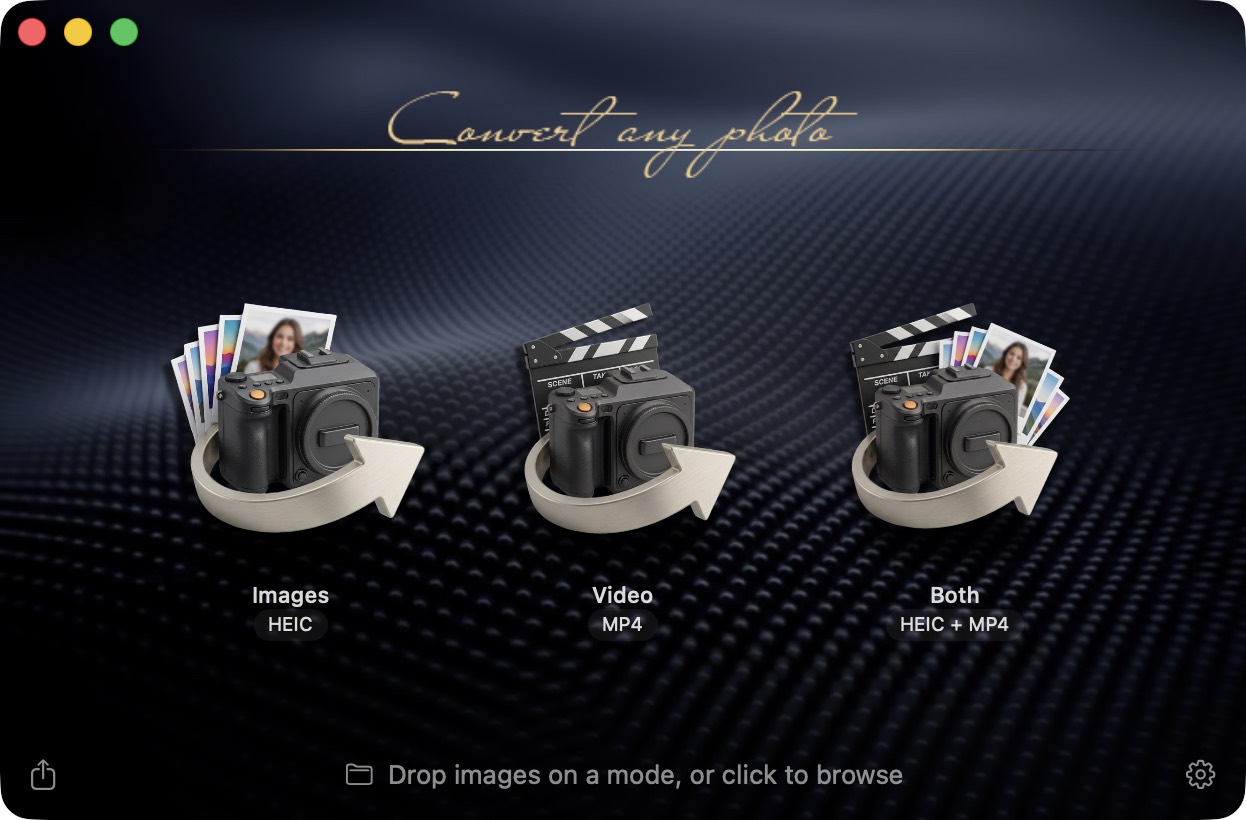
01. First launch
This is the whole app: one window, three tiles. Images converts photos, Video turns them into an MP4 slideshow, Both does the two at once.
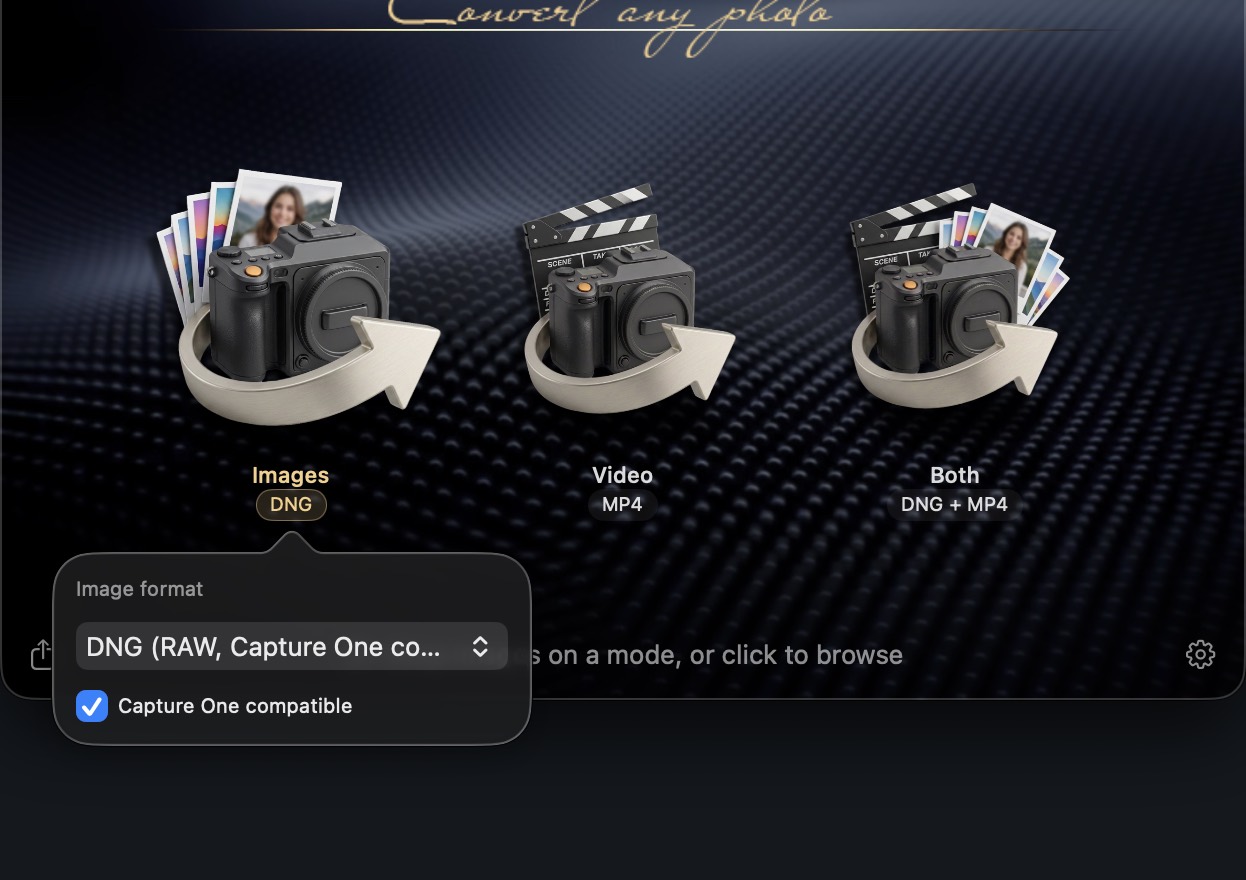
02. Choose the format
Click a tile to choose what it produces. For Capture One, pick DNG and leave Capture One compatible ticked. JPEG, HEIC, PNG, TIFF, WebP and JPEG XL are in the same list.
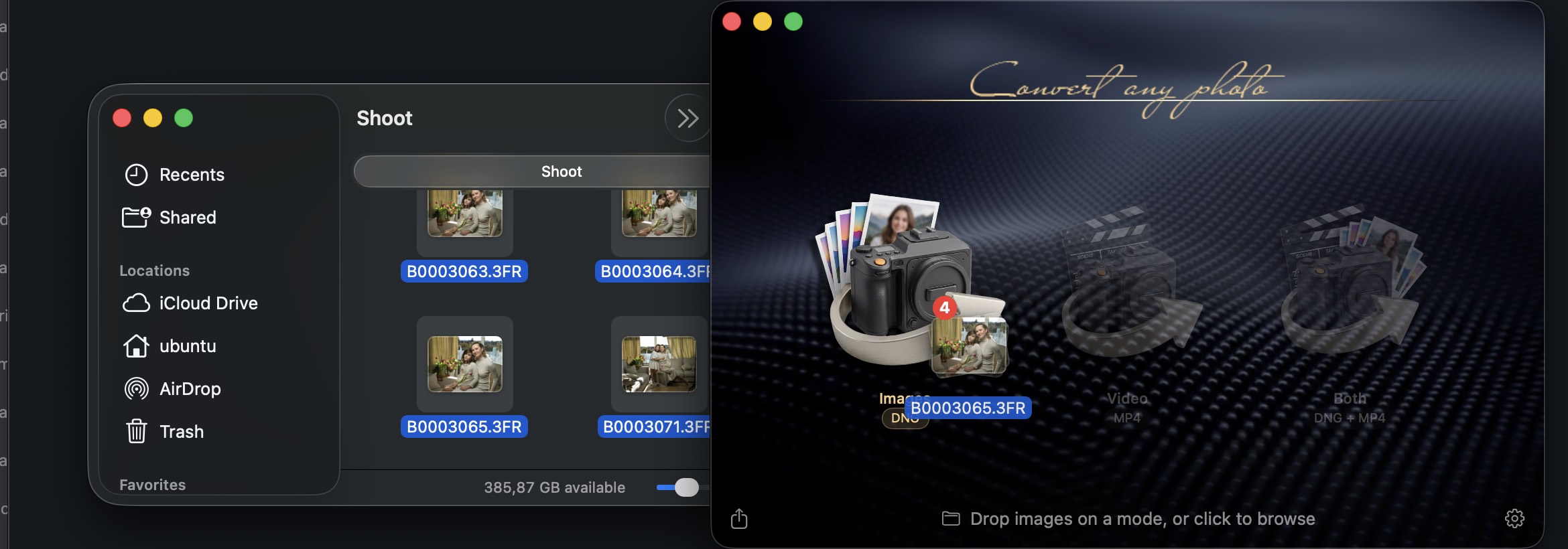
03. Drop your files
Drag photos or a whole folder from Finder onto a tile. The tile lights up, the other two fade, and the conversion starts as soon as you let go. You can also click the line at the bottom to browse instead.
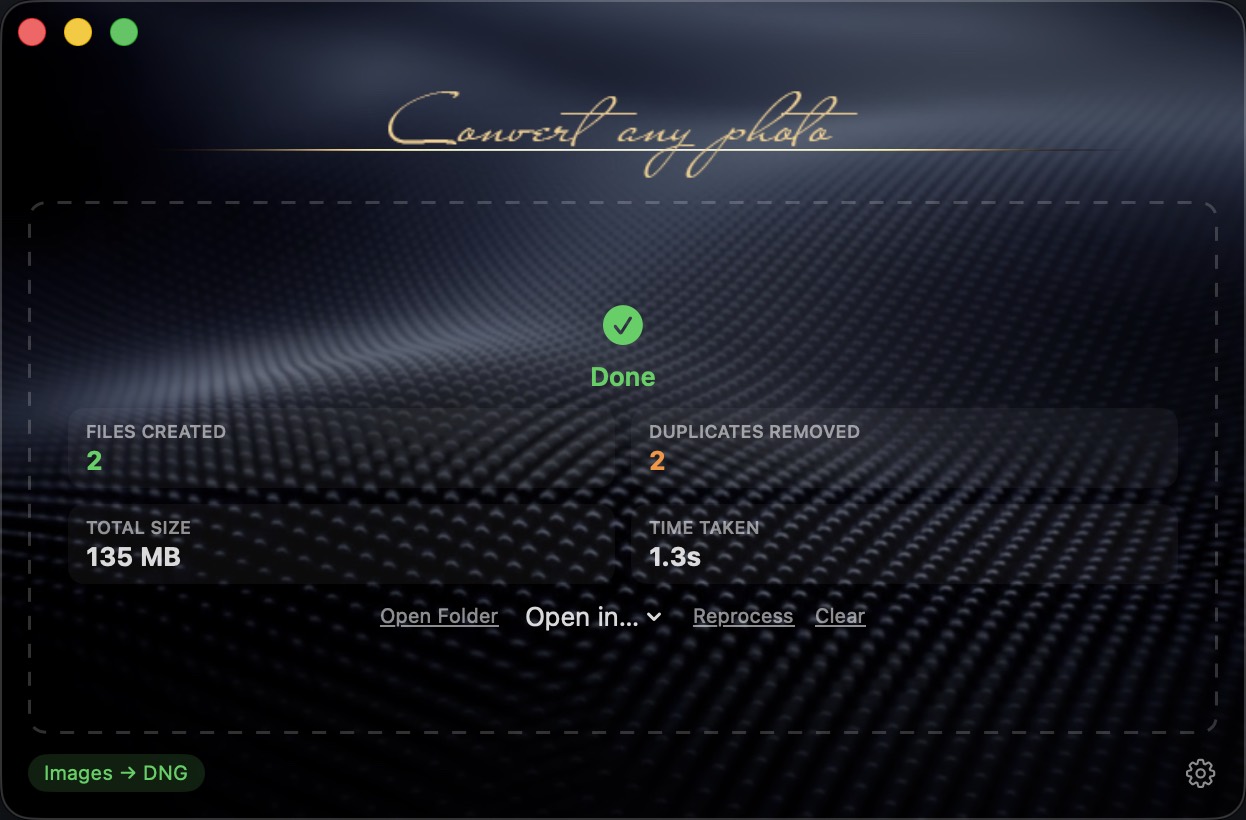
04. Done
You get a short summary: files created, size, time taken, and how many near-identical frames were skipped. From here, open the folder or send the files straight to your editor with Open in…. With Capture One, the app creates a "ConvertAnyPhoto" session and copies the DNGs into its Capture folder.
05. Settings
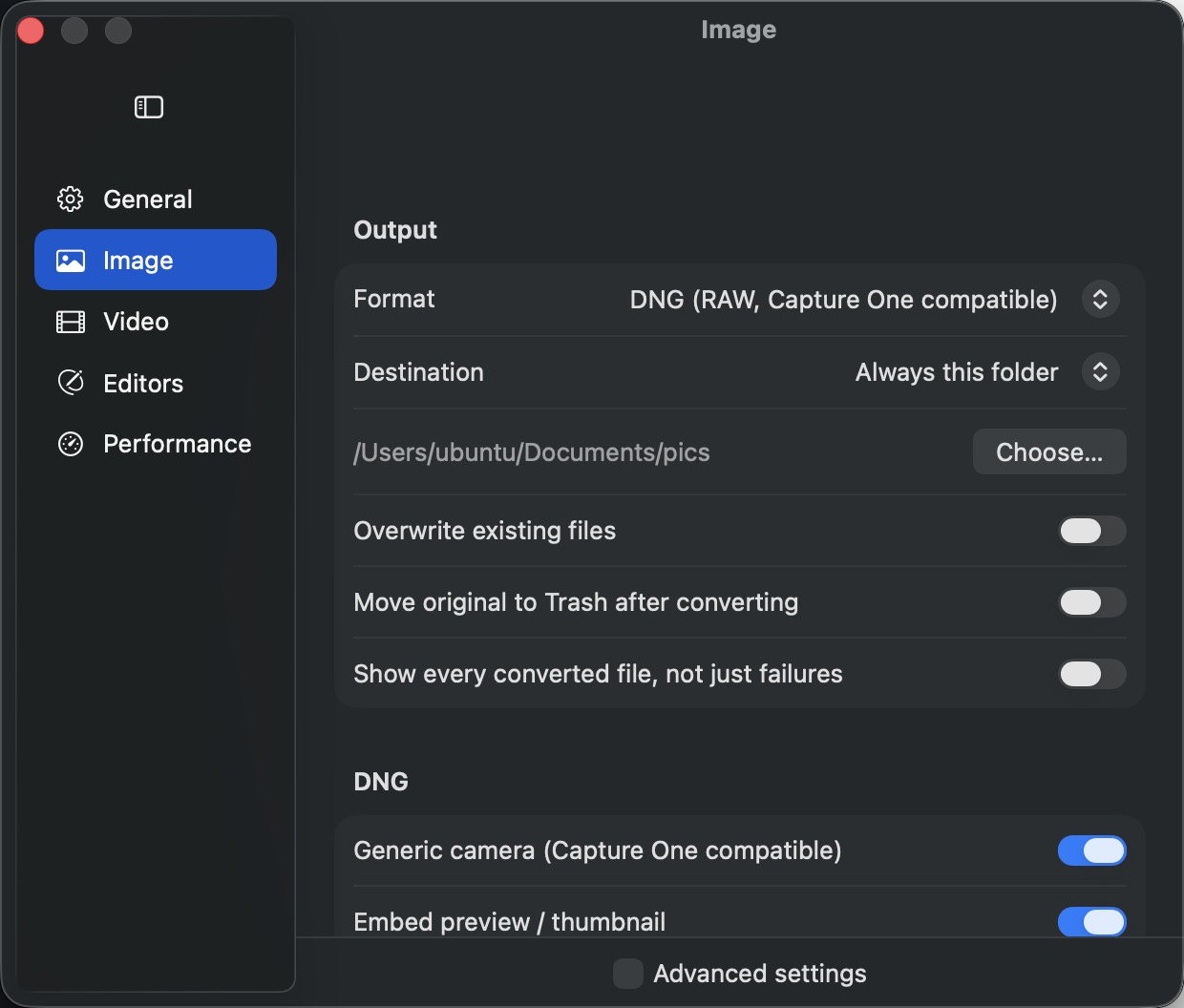
The gear icon at the bottom right opens Settings. Image holds the format, where files go (ask each time, next to the originals, or always the same folder), overwrite, and the DNG options. Editors is where you pick Capture One and its session folder. Tick Advanced settings at the bottom for JPEG quality, the duplicate threshold and the video options.
The first time, macOS may say it can't check the app. Open System Settings → Privacy & Security, scroll down and click Open Anyway. You only do this once.
From the Studio & Field
Real experiences from Hasselblad and Capture One users who integrated ConvertAnyPhoto into their daily post-production.
Anyone shooting on an X1D II who refuses to give up Capture One knows the pain: first Phocus, then exporting, then messing with terminal scripts to strip the Make/Model tags so C1 doesn't block the DNGs. I bought ConvertAnyPhoto strictly to automate that one annoying hurdle. What I didn't expect was how much time the rest of the app would save me. The option to extract embedded JPEG previews from 100MP .3fr files is insane — I can dump 300 shots from a portrait session and hand the client an iPad with graded-looking proofs in two minutes flat before we even wrap.
Honestly, I just needed a quick way to get my 907X files into Capture One without maintaining two separate RAW converters. It nails that — the fact that it builds the actual C1 Session and drops the DNGs straight into the Capture folder shows the developer actually uses Capture One. But the real sleeper feature for me is the PSNR near-duplicate skipping. When shooting fashion editorials, I end up with dozens of nearly identical frames. Setting the dB threshold weeds out the redundant shots before they even eat up disk space as DNGs.
I'll admit I hesitated for a second when macOS threw the security warning on first launch, but running the xattr -cr command from the guide took five seconds and it's been rock solid ever since. I got it solely to bridge our studio's H6D `.fff` archives into Capture One. Last week, though, an art director asked for a quick motion reel of the day's lookbook. Instead of opening Premiere, I used the built-in Make Slideshow mode with Letterbox framing and handed them an MP4 in three clicks. Paid for itself right there.
My main frustration was having my Nikon `.nef` files in Capture One while my Hasselblad X1D landscapes were stuck in Phocus. I purchased this app just to get my Hasselblad work into my main C1 color-grading pipeline. Once I started poking around the settings, I realized it supports libjxl and ProPhoto RGB out of the box. Now I use it not just as a Capture One bridge, but also to batch-convert my finished master archives into 16-bit JPEG XL at a fraction of the TIFF file size.
If you know, you know: Capture One refuses to just "open a file" unless it lives inside a proper Session structure. Having ConvertAnyPhoto strip the Hasselblad metadata AND automatically populate the ConvertAnyPhoto session folder saves me from endless Finder window juggling. As a bonus for a nerd like me, discovering the --cli-slideshow flag meant I could hook it up to a Folder Action to auto-generate client dailies at the end of every architectural shoot. Brilliant little tool.